SBS On Demand Not Working on Smart TV in Australia: App, Login and Playback Fixes
A practical Australian guide to fixing SBS On Demand app, login, playback, Fire TV and Wi‑Fi problems before replacing your TV or resetting your whole home network.
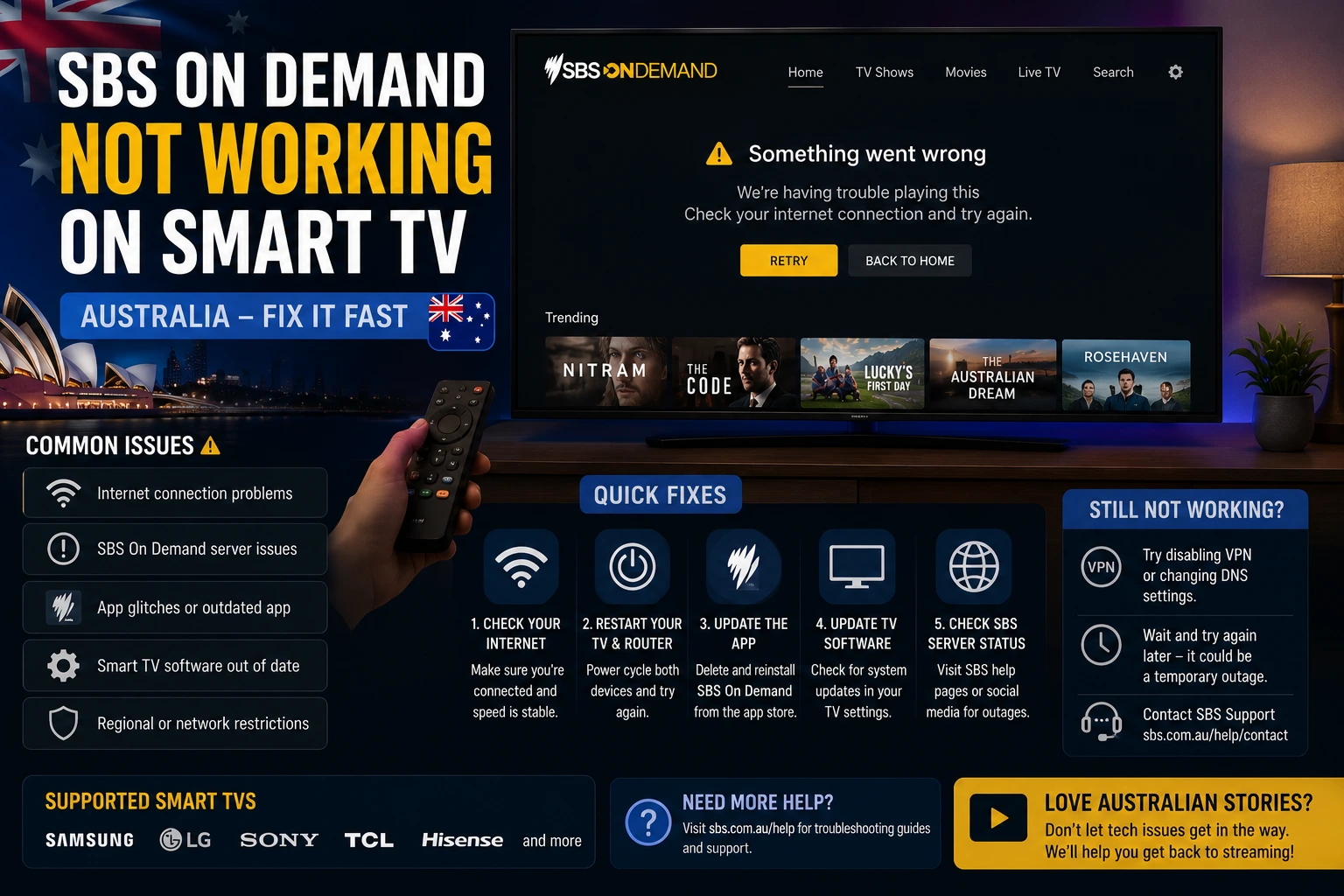
SBS On Demand is one of the most useful free streaming services for viewers in Australia, especially when you want to watch documentaries, drama, news, multicultural content, football coverage, replays, highlights and live event programming on a bigger screen. But like any streaming app, it can sometimes stop working at the worst possible time: the app will not open, the video keeps loading, the sign-in page freezes, the sound works but the picture does not, or your Smart TV suddenly says the app is no longer supported.
This guide is for Australian viewers who want practical, non-technical fixes before replacing a TV, resetting the whole house network or assuming the service is broken. It focuses on Smart TVs, Amazon Fire TV devices, Google TV-style devices, set-top boxes and normal home Wi‑Fi. The goal is simple: help you work out whether the problem is the SBS On Demand app, your device, your internet connection, your account sign-in, or your TV’s compatibility.
If you are preparing for live sport, World Cup coverage or a family viewing night, do these checks before the event starts. A ten-minute setup test can save a lot of stress when everyone is waiting for the stream to load.
First, Check Whether Your Device Is Supported
The first thing to confirm is whether SBS On Demand still supports your device. This matters because many streaming problems are not caused by Wi‑Fi at all. They happen because an older TV no longer receives the app version needed to run the service properly.
SBS maintains a supported device list that includes many common platforms such as Samsung TV models from 2017 onward, LG TV models from 2017 onward, Hisense TV models from 2021 onward, Apple TV 4th generation and later, Amazon Fire TV Stick devices on Fire OS 5 and above, Chromecast with Google TV, Google TV Streamer, Fetch and other supported boxes. You can check the official SBS device list here: SBS On Demand supported devices.
If your device is not supported, the cleanest fix is usually to use an external streaming device rather than replace the whole TV. SBS also explains that people with some unsupported TV models can continue watching by using options such as Chromecast with Google TV, Amazon Fire TV, Apple TV, Android TV, Fetch, Hubbl, Foxtel iQ or an HDMI cable from a laptop. That official explanation is available on the SBS help site: SBS On Demand no longer supported on some devices.
Try OzViewTV Free for 12 Hours First
Test OzViewTV on your Smart TV, Fire TV, Android TV, phone or tablet. Check the channels, streaming quality and setup first, then choose a plan only if it works well for you.
Common SBS On Demand Problems on Smart TVs
Most SBS On Demand issues fall into a few simple categories. Knowing the category helps you choose the right fix.
- The app will not open: usually caused by outdated TV software, corrupted app data, low storage, or temporary app failure.
- Video keeps buffering: often related to weak Wi‑Fi, router location, household congestion, or evening network pressure.
- Login does not work: may be caused by an expired session, incorrect account details, browser/device linking problems, or app cache issues.
- Black screen or frozen screen: can be a device memory problem, app crash, HDMI issue, or old operating system.
- App no longer available: usually means the TV model or operating system is no longer supported.
Do not try every fix randomly. Start with the easiest checks, then move step by step. This saves time and helps you understand what actually solved the problem.
Step 1: Restart the App and the TV Properly
Many Smart TVs do not fully close apps when you press the home button. The app may remain in memory, and if it crashed once, it can keep opening in a broken state.
Start by closing SBS On Demand completely if your TV allows it. Then turn the TV off, unplug it from power for about one minute, plug it back in and open the app again. This is better than only pressing the power button on the remote, because many TVs enter standby mode instead of restarting fully.
If you are using a Fire TV Stick, Google TV device or set-top box, restart that device too. On small streaming sticks, memory fills up quickly, especially if several apps were opened recently. A restart clears temporary problems and gives the app a fresh start.
Step 2: Update the SBS App and TV Software
Outdated apps are one of the easiest problems to miss. If your TV app store allows manual updates, open it and check whether SBS On Demand has an update waiting. Then check your TV firmware or system software from the settings menu.
On older TVs, updates may be limited or unavailable. That does not always mean the TV is broken, but it may mean the built-in app experience is no longer reliable. In that case, an external streaming device can be a more stable solution.
For Fire TV users, Amazon recommends steps such as restarting the device, clearing app cache/data, and reinstalling the app when an app crashes or will not load. Amazon’s help page explains this here: App crashes or will not load on Fire TV.
Step 3: Clear Cache or Reinstall the App
Cache is temporary data that helps apps load faster. Over time, it can become corrupted or too heavy, especially on devices with limited storage. If SBS On Demand opens slowly, freezes, or crashes after the logo screen, clearing cache can help.
On Fire TV, go to Settings, then Applications, then Manage Installed Applications, choose the app, and clear cache. Amazon also has a dedicated guide for clearing app data and cache on Fire TV: How to clear app data and cache on Fire TV.
On Smart TVs, the wording changes depending on brand. Look for options such as “Apps,” “Storage,” “Reset app,” “Clear data,” or “Reinstall.” If you cannot clear cache directly, uninstall the app, restart the TV, then install the app again.
Step 4: Test Your Wi‑Fi Signal, Not Just Your Speed
People often run a speed test on a phone near the router and assume the TV should work. But your TV may be in a different room, behind a wall, or connected to a weaker Wi‑Fi band. Live streaming needs a stable connection where the TV actually sits.
NBN Co advises that router position matters: a central, raised and open location gives Wi‑Fi a better chance, and clearer line-of-sight between router and devices improves signal quality. NBN Co also notes that older Wi‑Fi routers may limit performance even if the internet plan is good. You can read their router guidance here: why your Wi‑Fi router matters.
If SBS On Demand works on your phone near the router but not on the TV, the problem is likely the TV’s connection area, not the SBS app itself. Try moving the router, using 5 GHz Wi‑Fi when close enough, using Ethernet where available, or adding a mesh Wi‑Fi point for larger homes.
Step 5: Check NBN Performance and Household Congestion
Australian homes often have several devices connected at the same time: phones, laptops, gaming consoles, cloud backups, security cameras and multiple TVs. Even if the NBN connection is generally fine, heavy household use can create buffering during peak viewing hours.
The ACCC’s Measuring Broadband Australia program provides independent information about real-world broadband performance and helps consumers understand how broadband plans perform outside advertising claims. Their broadband performance data page is a useful reference for Australians comparing or checking internet performance: ACCC broadband performance data.
Before a live event, pause large downloads, cloud backups and game updates. If someone is gaming online or uploading large files, the stream may become unstable. For important matches or live shows, keep the network simple until the event finishes.
Step 6: Fix Login and Account Problems
If the SBS On Demand app opens but will not let you sign in, start with a simple password reset on a phone or computer. It is often easier to confirm your account through a browser than through a TV remote.
After confirming the account works, sign out of the TV app if possible, restart the device and sign in again. If the TV gives you an activation code, enter it carefully on the correct SBS page and avoid waiting too long before completing the step.
If login loops continue, clear app data or reinstall the app. This removes the old session and forces the app to create a fresh sign-in state.
Step 7: Use an External Device When the TV Is Too Old
If your Smart TV is old, slow, unsupported or no longer receives app updates, the most practical fix is usually an external streaming device. You connect it through HDMI and use updated apps from that device instead of relying on the TV’s built-in app store.
For many Australian households, this is cheaper and easier than buying a new TV. A Fire TV device, Google TV device, Apple TV, Fetch-style box or laptop-to-HDMI setup can keep an older screen useful for years.
If you already use a Firestick, our Fire TV Stick setup guide for Australia explains app setup, storage, Wi‑Fi and troubleshooting basics. If your issue is general buffering rather than only SBS On Demand, read our Australian NBN and Wi‑Fi buffering guide.
When the Problem Is Not Your Device
Sometimes there is nothing wrong with your TV or internet. A streaming service can experience temporary high demand, maintenance, regional playback problems or login issues. If the app suddenly stops working on every device in the house, check whether SBS On Demand works on a mobile browser or another device.
If it fails everywhere, wait a little and check official support pages. If it works on your phone but not on the TV, focus on the TV app, Wi‑Fi signal or device compatibility.
Best Setup for Live Sport and World Cup Viewing
Live sport is less forgiving than normal on-demand shows. If the stream buffers during a film, you can pause and continue. If it buffers during a football match, you may miss a goal.
Before major events, test your setup the day before. Open the app, play a video for several minutes, check audio, and confirm the remote works. If you are preparing for tournament coverage, our World Cup 2026 Australia streaming setup guide explains SBS, Smart TV, Firestick and mobile preparation in more detail.
It is also smart to keep a backup device ready. A laptop, tablet or phone can save the evening if your TV app fails. For broader app choices, our Australian Smart TV streaming apps guide compares useful official apps and setup considerations.
Quick Troubleshooting Checklist
| Problem | Likely Cause | First Fix |
|---|---|---|
| App will not open | App crash or outdated software | Restart TV, update app, reinstall |
| Video buffers | Weak Wi‑Fi or household congestion | Move router, use 5 GHz/Ethernet, pause downloads |
| Login keeps failing | Expired session or wrong account details | Reset password, clear app data, sign in again |
| App disappeared | Unsupported TV model | Check SBS device list, use external streamer |
| Firestick app freezes | Cache, low storage or memory issue | Clear cache, uninstall unused apps, restart |
Try OzViewTV Free for 12 Hours First
Test OzViewTV on your Smart TV, Fire TV, Android TV, phone or tablet. Check the channels, streaming quality and setup first, then choose a plan only if it works well for you.
Final Thoughts
When SBS On Demand is not working on your Smart TV, the best approach is calm and structured. Do not start by resetting everything. First check whether your device is supported. Then restart the TV, update the app, clear cache, test Wi‑Fi where the TV sits, and confirm your account sign-in.
For many Australian homes, the issue is not one single thing. It can be an older TV, a weak Wi‑Fi corner, a full Firestick, an outdated app and a busy evening network all at once. Fixing the basics gives your streaming setup a much better chance.
If your TV is no longer supported, an external streaming device can be the simplest solution. If your internet is unstable, router placement and household usage matter. And if the issue happens only during live sport, prepare before match day rather than troubleshooting during kickoff.
A reliable streaming setup does not need to be complicated. It just needs to be tested, updated and matched to the device you actually use.
FAQ
Why is SBS On Demand not working on my Smart TV?
Common reasons include unsupported TV models, outdated TV software, old app versions, corrupted app data, weak Wi‑Fi or temporary service issues.
How do I know if my TV supports SBS On Demand?
Check the official SBS supported device list. SBS lists compatible Smart TVs, Fire TV devices, Google TV devices, Apple TV, Fetch, Hubbl and other platforms.
Why does SBS On Demand keep buffering?
Buffering is usually caused by weak Wi‑Fi, household network congestion, router placement, outdated apps or low device performance.
Should I clear cache on Fire TV if SBS On Demand freezes?
Yes, clearing app cache can help when an app freezes, loads slowly or crashes. If that does not work, restart the device or reinstall the app.
What should I do if my TV is no longer supported?
Use a compatible external streaming device such as Fire TV, Google TV, Apple TV, Fetch-style box or HDMI from a laptop instead of replacing the whole TV.
Is this problem always caused by SBS On Demand?
No. The issue may be the app, your TV software, your Wi‑Fi, your account session, your device storage or temporary service demand.
Need help fixing your streaming setup?
Tell OzViewTV your TV model, streaming device and what is happening on screen. We can guide you through basic app, Wi‑Fi and device checks.
WhatsApp OzViewTV