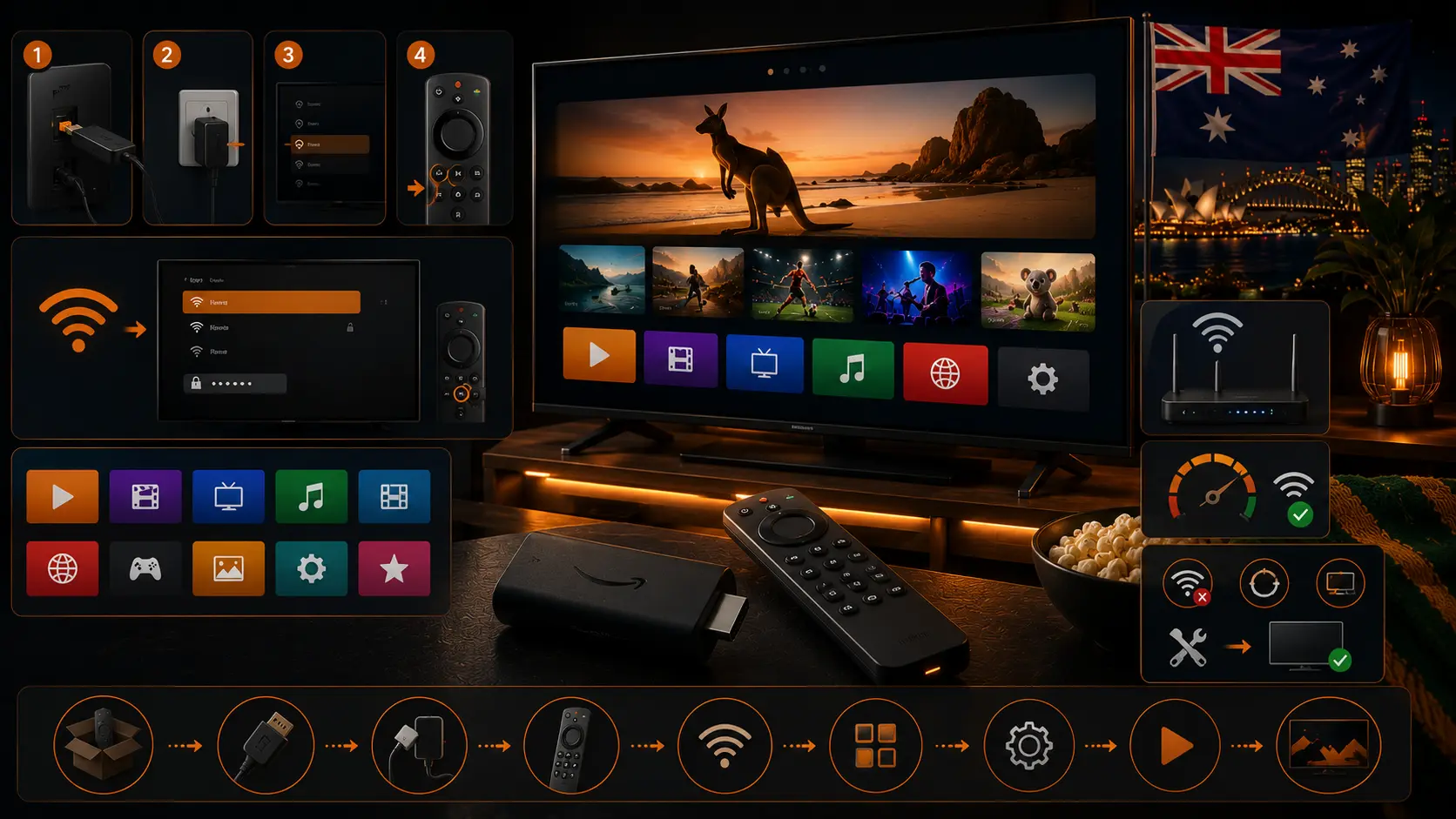
Connect Fire TV correctly
- Connect the Fire TV Stick to an HDMI port.
- Use the supplied USB cable and mains power adapter.
- Select the correct HDMI input.
- Insert the remote batteries.
- Follow the language and network setup.
- Sign in with an Australian Amazon account.
Install official apps
Amazon instructs users to search from the main menu or open the Amazon Appstore, select the app and choose Get. Install only official applications. Useful Australian options include SBS On Demand, ABC iview and other services that list Fire TV support.
Set the display to Auto
Use Auto resolution during setup. Forcing 4K or HDR can create a blank screen when the television, HDMI port or cable does not support the selected format.
Improve Wi-Fi
- Use 5 GHz Wi-Fi when the router is nearby.
- Use the HDMI extender to move the stick away from the TV body.
- Place the router in an open position.
- Use an Ethernet adapter for the most stable connection.
Try OzViewTV Free for 12 Hours First
Test OzViewTV on your Smart TV, Fire TV, Android TV, phone or tablet. Check the channels, streaming quality and setup first, then choose a plan only if it works well for you.
Manage storage
Open Settings, Applications and Manage Installed Applications. Remove apps no one uses and clear cache on problem apps. Avoid clearing data unless you know the password because it normally signs the user out.
Restart and update Fire TV
Install Fire OS updates before major events. Restart through Settings or disconnect power briefly when the device is frozen. Frequent restarts may indicate weak power, heat or failing storage.
Common problems
No picture
Check the HDMI input, reconnect the device, use the mains adapter and try another HDMI port.
Remote not responding
Replace batteries, restart Fire TV and hold Home to pair again.
App keeps closing
Clear cache, free storage, update the app and reinstall it from the Appstore.
Buffering
Move to stronger Wi-Fi, pause downloads or use Ethernet. Follow our Australian buffering guide.
Audio delay
Test TV speakers and HDMI audio before using Bluetooth. Adjust audio sync only after isolating the source.
Australian app setup checklist
- Install SBS On Demand for SBS live and on-demand content.
- Install ABC iview and link the ABC Account.
- Install 7plus and 9Now when supported.
- Review each app's location and account requirements.
- Keep a mobile app as a backup.
Account security
- Use the official Amazon account and Appstore.
- Do not enter codes on unrelated websites.
- Enable a purchase PIN.
- Sign out before selling the device.
- Review installed apps and permissions.
Related Australian guides
Official sources
Frequently asked questions
Should I power Fire TV from the television USB port?
Use the supplied mains adapter where possible. A weak USB port can cause restarts and unstable performance.
How do I install apps?
Search from the Fire TV Home screen or open the Amazon Appstore and select Get.
Can Fire TV run SBS On Demand?
Yes, supported Fire TV devices are listed by SBS.
Can Fire TV run ABC iview?
Yes, the ABC lists Fire TV Stick with supported Android TV and connected devices.
How do I clear app cache?
Open Settings, Applications, Manage Installed Applications, select the app and choose Clear Cache.
Why is the remote not working?
Replace batteries, restart Fire TV and hold the Home button to pair the remote again.
Try OzViewTV Free for 12 Hours First
Test OzViewTV on your Smart TV, Fire TV, Android TV, phone or tablet. Check the channels, streaming quality and setup first, then choose a plan only if it works well for you.
Need help preparing your device?
Tell OzViewTV your television or streaming-device model, the official app you use and whether the connection is Ethernet or Wi-Fi.
Contact OzViewTV