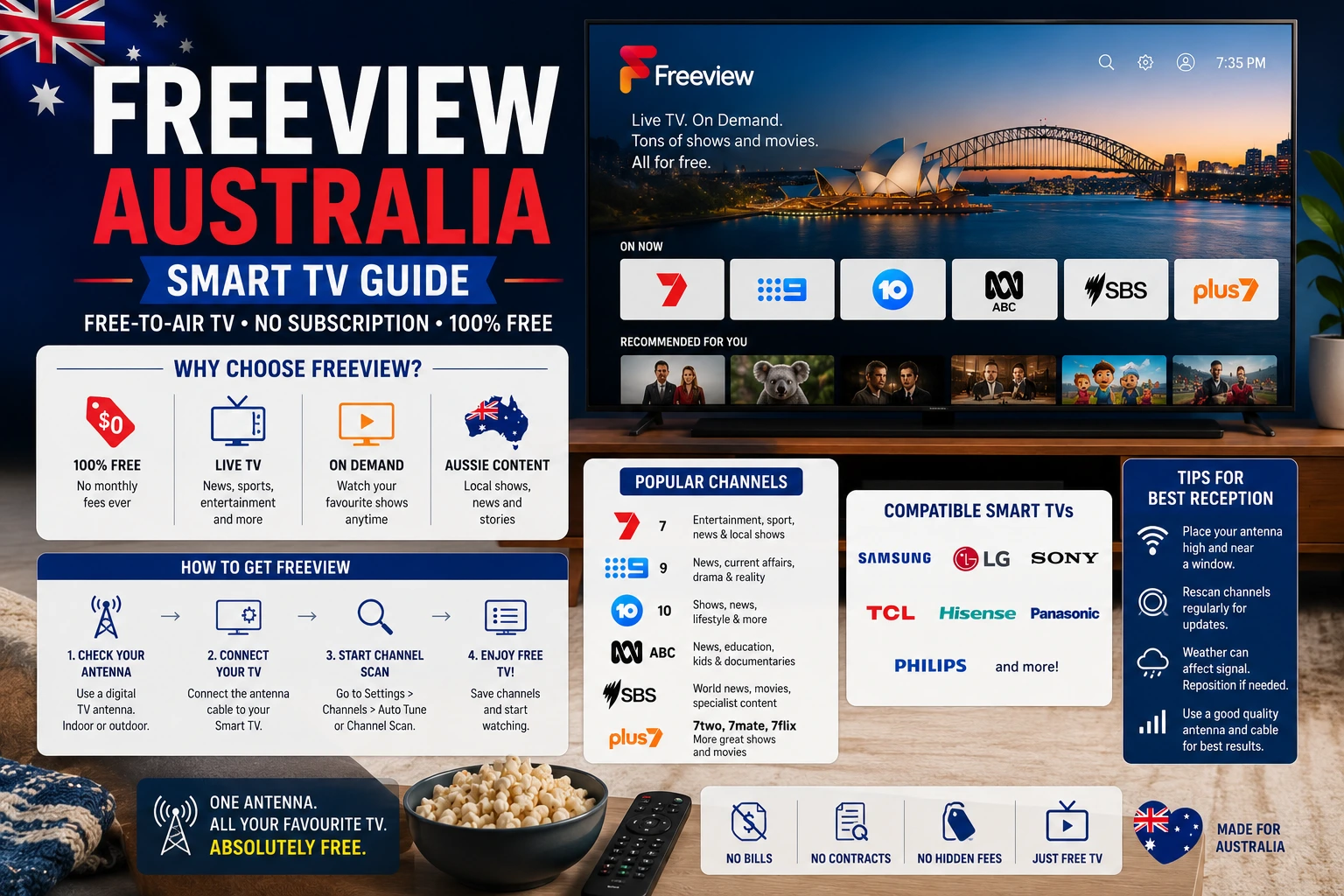
Free-to-air streaming in Australia can be simple once your Smart TV is set up properly, but it can also feel confusing when every network has its own app, sign-in process, device list and playback rules. One person in the house may use ABC iview, another may want SBS On Demand, someone else may open 7plus for live sport, and another may search for 9Now or 10. The TV may show some apps but not others, and older Smart TVs sometimes stop receiving app updates completely.
This guide explains how to set up Freeview Australia and the main Australian free-to-air streaming apps on Smart TVs, Fire TV-style devices, Google TV, mobile and browsers. The goal is practical: help you understand what Freeview does, which apps you may need, how to check compatibility, and how to avoid common problems such as missing apps, login loops, buffering and unsupported TVs.
The article is written for Australian households that want a clean streaming setup without turning the living room into a technical project. It is not about replacing official apps or bypassing regional rules. The safest approach is to use official broadcaster apps and follow the device guidance from each service.
Try OzViewTV Free for 12 Hours First
Test OzViewTV on your Smart TV, Fire TV, Android TV, phone or tablet. Check the channels, streaming quality and setup first, then choose a plan only if it works well for you.
What Is Freeview Australia?
Freeview Australia is designed to help viewers discover free-to-air TV from Australia’s major networks. It brings attention to content from ABC, SBS, Seven, Nine and Ten, and helps users search, discover and plan what to watch. Freeview’s own website describes it as a way to access Australia’s free-to-air TV channels, including ABC, SBS, 7, 9 and 10, when a TV is connected to an aerial and the internet. You can check Freeview directly here: Freeview Australia.
One important point: Freeview is not always a single replacement for every broadcaster app. In many cases, you still need the relevant app installed and active on your device. For example, if you want ABC content, you may use ABC iview. For SBS content, you may use SBS On Demand. For Seven, Nine and Ten content, you may use 7plus, 9Now and 10.
Think of Freeview as part of the discovery layer for Australian free-to-air content, while the individual apps are the playback destinations for many live and on-demand programs.
The Main Free-to-Air Streaming Apps in Australia
Most Australian Smart TV users should understand five app names: ABC iview, SBS On Demand, 7plus, 9Now and 10. Each one is linked to a different broadcaster group and has its own supported devices, account rules and app store availability.
ABC iview
ABC iview is the official streaming app for ABC content. It is useful for ABC News, documentaries, children’s programs, Australian shows, drama and catch-up TV. ABC’s support pages list many compatible devices and TVs, including Samsung, Hisense, LG, Apple TV, mobile apps and supported browsers. You can review ABC’s own device guidance here: ABC iview supported login devices.
SBS On Demand
SBS On Demand is important for documentaries, international programs, films, multicultural content and major sports coverage such as FIFA World Cup programming. SBS lists support for platforms including Samsung TVs from 2017 onward, LG TVs from 2017 onward, Hisense TVs from 2021 onward, Amazon Fire TV Stick, Apple TV, Google TV devices and more. The official SBS supported device page is here: SBS On Demand supported devices.
7plus
7plus is Seven’s streaming platform, with live and on-demand content depending on rights, device and location. The 7plus support page lists access across Smart TVs, Android TV and Google TV, LG, Samsung, Sony, VIDAA, Freeview Plus, Apple TV, Chromecast with Google TV, Fetch, Foxtel iQ, Hubbl, Amazon Fire Stick, mobile devices, browsers and game consoles. You can check the official list here: devices that can watch 7plus.
9Now
9Now provides live and on-demand content from Nine’s channels and programs. The 9Now “Ways to Watch” page lists TV platforms including Amazon Fire TV, Android TV, Apple TV, Chromecast, Fetch TV, Foxtel iQ, Freeview, Hisense, LG and more. You can check the official page here: 9Now ways to watch.
10
10 is Network 10’s streaming app, used for live channels and on-demand content. Network 10’s help pages list support for Smart TVs and streaming devices, including LG TVs from 2018 onward, Samsung Smart TVs from 2018 onward and Hisense Smart TVs from 2021 onward, along with other platforms. Their support article is here: 10 supported devices.
Best Setup for a Modern Australian Smart TV
If your TV is recent and has a reliable app store, the best setup is usually simple. Open the TV’s app store, search for the apps you actually use, install them one by one, then sign in and test playback before you need them for a live event.
Do not install everything randomly if you rarely use it. Too many apps can make older TVs feel slow. Start with the essentials: ABC iview, SBS On Demand, 7plus, 9Now and 10. Then add paid or specialist services only if you actually use them.
After installing the apps, play a normal program from each one for a few minutes. This confirms the app opens, your account works, video plays correctly, and your TV can handle the stream. Testing matters because the app may install successfully but still fail at login or playback.
What to Do If Your Smart TV Is Too Old
Older Smart TVs often create the most frustration. The screen may still look fine, but the software inside the TV may be too old for current streaming apps. You may notice that an app is missing, cannot be installed, freezes on launch, or says the device is no longer supported.
In that situation, replacing the whole TV is not always necessary. A small HDMI streaming device can give an older screen access to newer app versions. Common options include Amazon Fire TV, Google TV, Apple TV, Chromecast with Google TV, Fetch-style boxes and other supported devices.
If you are using Amazon Fire TV in Australia, our Fire TV Stick setup guide for Australia explains installation, Wi‑Fi, storage and app troubleshooting. If your main issue is SBS specifically, read our SBS On Demand troubleshooting guide.
Freeview Plus vs Freeview App vs Broadcaster Apps
Australian viewers sometimes confuse Freeview Plus, the Freeview mobile app and the individual broadcaster apps. The names are similar, but the experience can differ depending on TV model, aerial connection and app support.
Freeview Plus is generally linked to compatible TVs and free-to-air broadcasting features. The Freeview app helps people search and discover content on mobile. The broadcaster apps are where many users actually stream programs live or on demand.
For everyday viewing, the most reliable setup is usually this: keep your TV aerial working if you use broadcast channels, keep Freeview available where supported, and install the broadcaster apps you watch most. This gives you more than one way to reach content if one option fails.
Recommended Setup by Device Type
| Device | Best Setup | Common Issue |
|---|---|---|
| New Smart TV | Install ABC iview, SBS On Demand, 7plus, 9Now and 10 from the TV app store. | Some apps may need sign-in or TV software updates. |
| Older Smart TV | Use an external streaming device if apps are missing or unsupported. | Built-in app store may be outdated. |
| Fire TV Stick | Install supported broadcaster apps from the Amazon Appstore. | Low storage, weak Wi‑Fi or app cache problems. |
| Google TV / Android TV | Use the Google Play Store to install official apps. | App availability depends on model and region. |
| Mobile or tablet | Install official apps from the Apple App Store or Google Play. | Mobile data use can be high for long viewing sessions. |
| Laptop | Use official websites in an updated browser. | Browser extensions, VPNs or old browsers may affect playback. |
How to Avoid Buffering on Free-to-Air Apps
Free-to-air apps still need a stable internet connection. Even if the content is free, the stream depends on your Wi‑Fi, router, NBN performance and device quality.
Start with router position. A TV in the back room may have a weak signal even if your phone near the router is fast. If possible, use 5 GHz Wi‑Fi when the device is close to the router, or Ethernet when your TV or streaming box supports it. Restarting the router before a major live event can also help.
If buffering happens across several apps, the issue is probably your home network rather than one broadcaster. Our Australian NBN and Wi‑Fi buffering guide explains router placement, household congestion, Ethernet, mesh Wi‑Fi and live sport preparation in more detail.
Login and Account Tips
Many free-to-air apps now ask users to sign in. This can be annoying on a TV remote, but it helps apps remember watchlists, profiles, viewing progress and content preferences.
The easiest way is to create or confirm your account on a phone or laptop first. Then open the app on your TV and use the activation code or sign-in screen. If the TV login fails, reset the password in a browser, restart the TV app and try again.
If an app keeps looping back to the sign-in page, clear the app data or reinstall it. On Fire TV devices, clearing cache and data can fix stuck sessions. On Smart TVs, uninstalling and reinstalling the app may be the simpler option.
Should You Use a VPN?
If you are in Australia and watching Australian free-to-air services, a VPN is usually unnecessary. In fact, a VPN can create more problems than it solves. Some apps may block playback when the connection appears to come from another country, while others may show login or location errors.
The safest setup is to use the official apps normally from within Australia, with your normal home internet connection. If you are travelling, check the service terms and local viewing options rather than assuming the same app will work everywhere.
How This Helps With Sports and Live Events
Live sport is where a clean setup matters most. If an on-demand show buffers, you can pause and continue. If a live match buffers, you may miss an important moment. That is why Australian viewers should prepare the apps before major events, not during them.
Open the app the day before, play a video for five minutes, check the remote, check the audio, and make sure the account is still signed in. If you are preparing for football coverage, our World Cup 2026 Australia streaming setup guide explains SBS, Smart TV, Firestick and mobile preparation.
You can also keep a backup screen ready. A laptop, phone or tablet can save the viewing session if the TV app fails right before kickoff.
Simple Installation Checklist
- Update your Smart TV or streaming device software.
- Open the official app store on the device.
- Search for ABC iview, SBS On Demand, 7plus, 9Now and 10.
- Install only the apps you plan to use.
- Create or confirm your accounts using a phone or laptop.
- Sign in on the TV and test video playback.
- Check Wi‑Fi signal where the TV is located.
- Remove unused apps from older devices if performance is slow.
- Restart the device before major live events.
Common Problems and Fixes
The app is not in my TV app store
Check whether your TV model and year are officially supported. If not, use an external streaming device instead of relying on the built-in app store.
The app opens but will not play video
Update the app, restart the device, test another video and check your internet connection. If the issue affects only one app, check that app’s support page.
The app works on my phone but not my TV
This often means the TV app, TV software or TV Wi‑Fi connection is the problem. Try restarting the TV, updating software or using a streaming device.
The picture quality keeps changing
Most apps adjust quality based on connection stability. Improve Wi‑Fi, reduce other household usage or connect with Ethernet where possible.
The TV feels slow after installing many apps
Remove apps you do not use, restart the TV and avoid keeping too many apps open. Older Smart TVs have limited storage and memory.
Final Thoughts
A good Australian free-to-air streaming setup is not about installing every app possible. It is about installing the right official apps, checking device support, keeping the TV or streaming device updated, and making sure the internet connection is stable where you actually watch.
Freeview helps viewers discover Australian free-to-air content, while ABC iview, SBS On Demand, 7plus, 9Now and 10 provide the main app experiences for many live and on-demand programs. If your TV supports them, install and test them early. If your TV is too old, use a supported external streaming device.
For the smoothest experience, prepare before live events, keep accounts signed in, check Wi‑Fi and have a backup device ready. A little setup work now can make everyday viewing, sport nights and family catch-up sessions much easier.
Try OzViewTV Free for 12 Hours First
Test OzViewTV on your Smart TV, Fire TV, Android TV, phone or tablet. Check the channels, streaming quality and setup first, then choose a plan only if it works well for you.
Need Help Setting Up Your TV?
If you need help setting up Australian streaming apps on a Smart TV, Fire TV or Android TV device, contact our support team.
💬 WhatsApp UsFAQ
Is Freeview Australia the same as the individual apps?
No. Freeview helps viewers discover free-to-air TV content, while apps such as ABC iview, SBS On Demand, 7plus, 9Now and 10 are separate services that may still need to be installed or active on your device.
Can I watch Australian free-to-air apps on a Smart TV?
Yes, many Australian Smart TVs support apps such as ABC iview, SBS On Demand, 7plus, 9Now and 10, but support depends on the TV brand, model year and operating system.
What should I do if one app is missing from my TV?
Check the app store, update the TV software, confirm the official supported device list, or use an external streaming device such as Fire TV, Google TV, Apple TV, Fetch or Chromecast if available.
Do free-to-air streaming apps need good internet?
Yes. Live and on-demand streaming needs stable Wi‑Fi or Ethernet. Weak signal, router placement and household congestion can cause buffering even when the app itself is working.
Should I use a VPN with Australian free-to-air apps?
If you are in Australia, a VPN is usually not needed and may create login or playback problems. Always follow the terms and location rules of the service you are using.
Which app should I install first?
Start with the official apps you actually watch most, such as ABC iview for ABC content, SBS On Demand for SBS content, 7plus for Seven, 9Now for Nine and 10 for Network 10 content.