Stan Not Working on Smart TV? Australia Samsung, LG, Chromecast and App Fix
Fix Stan app problems in Australia: Smart TV black screen, buffering, Samsung TV errors, Chromecast issues, app cache and Wi-Fi checks. This device-first guide helps you separate an app problem from Wi-Fi, account or TV compatibility issues.
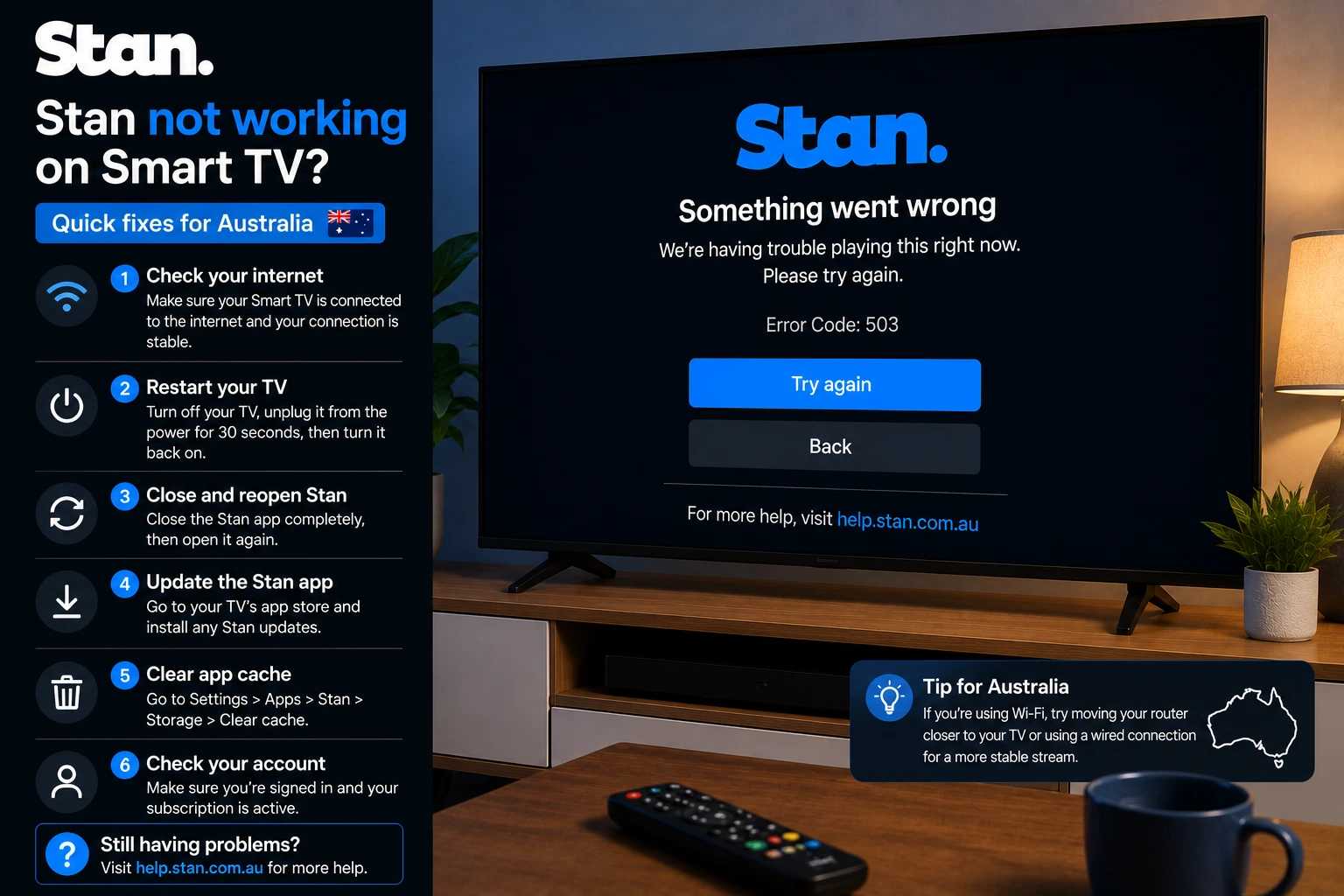
Why Stan can stop working on Australian Smart TVs
Stan problems usually come from one of four places: the app, the Smart TV operating system, the home network or the account session. On a busy night, it is tempting to delete the app straight away, but that can waste time if the real issue is weak Wi-Fi, an expired login session or an older TV model.
Start with a clean test. Open Stan on your phone or laptop using the same account. If it works there but fails on the TV, focus on the TV app, cache, firmware and connection. If it fails on every device, focus on account login, payment status, service outage or internet connection.
Check whether your device is supported
Before spending time on deeper fixes, confirm that the device is supported. Stan lists many supported devices including Apple TV, Android/Google TV devices such as Chromecast with Google TV, and other TV platforms. Support can vary by model and age, so a newer streaming stick can sometimes be more reliable than an old built-in TV app.
If your TV is older and the Stan app is missing or unstable, do not use unofficial APK files or random download links. Use a supported device such as a modern Chromecast with Google TV, Apple TV, Android TV device or another officially supported platform.
First 10-minute Stan fix checklist
- Fully close Stan, then reopen it.
- Restart the Smart TV from power, not only standby.
- Restart the modem/router and wait until Wi-Fi is stable.
- Open another Australian streaming app to compare playback.
- Check for TV firmware updates.
- Check for Stan app updates.
- Sign out and sign back in only after saving your login details.
- Try Stan on phone or browser to confirm the account works.
Stan black screen or freezing on Samsung TV
Samsung TV issues are common because many people keep a TV for years while apps keep updating. Stan’s own Samsung TV troubleshooting includes power cycling the TV and modem/router, clearing the Stan app cache, checking connection speed and updating TV software. These are good first steps because they target the most common causes without changing your account.
Unplug the Samsung TV from power for at least 30 seconds. Do the same with the modem/router. After both restart, open Stan again. If the screen stays black, look for app cache or storage options in the TV settings. On some Samsung models, clearing cache is easier through device care or app management. If cache controls are not available, reinstalling the app may be the practical alternative.
Stan buffering on NBN and Wi-Fi
Buffering does not always mean your plan is too slow. A speed test can look fine while the TV still struggles because the Wi-Fi signal is weak behind the wall, the router is overloaded, the TV is on 2.4 GHz, or other devices are downloading updates.
For the main TV, Ethernet is best. If Ethernet is not possible, use 5 GHz Wi-Fi close to the router. Avoid placing the router behind the TV, inside a cabinet or near thick walls. Restart the router earlier in the evening, not during the movie or live event.
Stan Chromecast problems
If Stan works on your phone but will not cast, check that the phone and Chromecast are on the same Wi-Fi network. Also confirm that your Chromecast device is compatible and updated. Stan says it is available on Google Chromecast and TVs or media players with Chromecast built in, but casting still depends on device generation, app version and network stability.
- Update the Stan mobile app.
- Restart Chromecast and the phone.
- Open Google Home and confirm the Chromecast is visible.
- Test casting from another app.
- Disable VPN or unusual DNS settings while testing.
When to reinstall the Stan app
Reinstalling is useful when the app is corrupted, stuck on old data or repeatedly crashing. It should not be the first step if you do not know your login details. After reinstalling, open Stan, sign in, then play a short video before testing a live sports stream or a high-demand episode.
Internal guides that can help
If Stan works but other apps fail, compare with the 9Now Smart TV fix, the 7plus troubleshooting guide and the Australian NBN buffering guide. If many apps fail at once, the TV or home network is probably the bigger issue.
Safety note
Use official Stan apps and official support pages. Avoid fake “free Stan” websites, unknown APKs or browser pop-ups that ask for card details. OzViewTV is independent and cannot access your Stan account, reset billing or change subscription rights.
Test Your Device Before You Commit
Message OzViewTV with your TV model, streaming device and the app that is failing. Check your setup first, then choose a plan only if it works well for you.
Official pages to check
For account, subscription, rights, device and app availability questions, always confirm details with the official service before making major changes to your TV, router or subscription.
Frequently asked questions
Why is Stan not working on my Smart TV?
Common causes include an unsupported or outdated TV app, weak Wi-Fi, a temporary app session problem, cache issues, outdated TV firmware or an account problem.
Why does Stan show a black screen on Samsung TV?
Stan support recommends power cycling the TV and modem/router, clearing app cache, checking connection speed and updating TV software for Samsung TV issues.
Can Stan cast to Chromecast in Australia?
Stan says it is available on Google Chromecast and TVs or media players with Chromecast built in, but you still need a compatible device and stable Wi-Fi.
Should I reinstall Stan first?
Reinstall only after restarting the TV, checking updates, testing your internet and confirming your login details, because reinstalling can sign you out.
Is OzViewTV official Stan support?
No. OzViewTV is independent. Use Stan support for account, billing and subscription questions.
Need Help Checking Your Australian Setup?
Send your device model, app name and the exact error on WhatsApp. OzViewTV can help you test the setup before you rely on it for live sport or family TV.