7plus Not Working on Smart TV? Australia Fix for Samsung, LG, Fire TV and Google TV
Fix 7plus problems in Australia: TV activation, app loading, buffering, black screen, Samsung TV support and Wi-Fi checks. This guide is written for Australian viewers who want a practical device-first fix before changing subscriptions or replacing hardware.
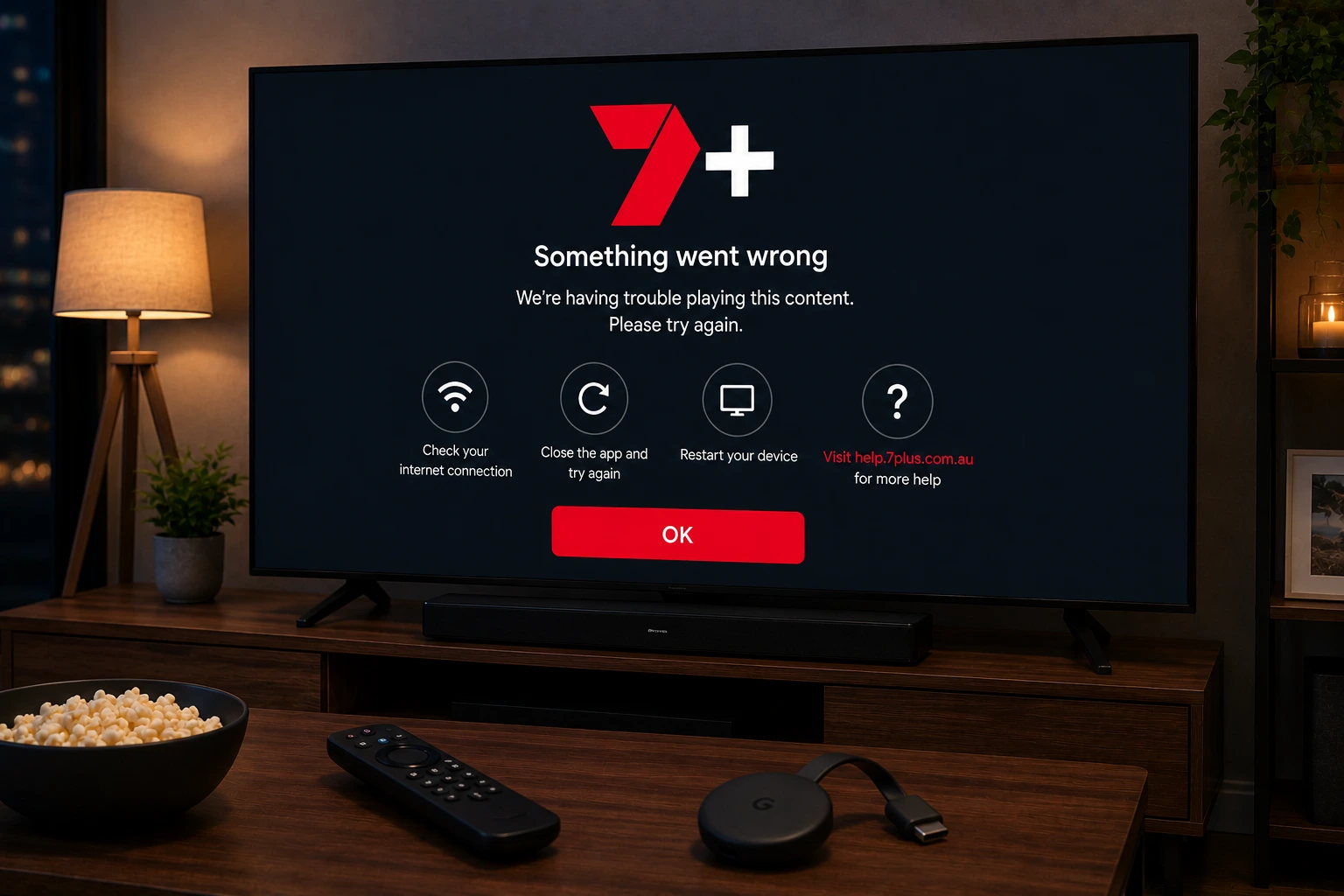
Why 7plus stops working on Smart TVs in Australia
7plus is one of Australia’s most used free-to-air streaming apps, especially for Channel 7, 7mate, 7two, 7flix and selected live or on-demand content. When it stops working on a lounge-room TV, the cause is usually not one single thing. It can be an unsupported TV model, an expired TV connection code, a stuck app session, weak Wi-Fi, an old operating system or a temporary service problem.
The best approach is to separate the problem. First confirm the app works on another device such as a phone or browser. Then check whether your TV model is supported, restart the TV, update the app and reconnect your account only if needed. Do not factory reset your TV before trying the smaller fixes.
Quick 7plus checklist before changing settings
Open 7plus on a phone or laptop first. If it works there but not on the TV, the issue is probably device-specific. If it fails everywhere, wait and check official 7plus support or service messages before changing your home setup.
- Check the TV date, time and internet connection.
- Restart the Smart TV fully, not only standby mode.
- Update the 7plus app and TV software.
- Sign out and sign back in if the app connects but will not play.
- Use the 7plus website TV connection option if the TV activation screen fails.
- Move the TV closer to the router or use Ethernet where possible.
Test Your Device Before Match Night
Ask OzViewTV for a free test, check your Smart TV, Fire TV, Android TV, phone or tablet, then choose a plan only if the setup works well for you.
Samsung TV and device compatibility
For Samsung TVs, 7plus support states that the app is available on Samsung TV devices from 2016 onwards, while older Samsung legacy devices may have limited functionality. This matters because many “not working” cases are actually compatibility cases: the app may install, but the old TV platform no longer receives the same level of development.
If your TV is older, a Fire TV Stick, Chromecast with Google TV, Apple TV or other supported streaming device can be a more stable option than replacing the entire television.
Fix TV activation and connection issues
A common 7plus problem is connecting the TV to your account. If the code does not work, do not keep reusing the same code for several minutes. Generate a fresh one, make sure you are on the official 7plus connection page, and sign in on the same account you want to use on the TV.
If the TV connection page loops, sign out on the TV app, close the app completely, restart the TV and try again. Also check whether VPN, ad-blocking or safe-search tools are interfering with the login or connection process.
Fix buffering and black screen
Buffering can happen even when your NBN speed looks fine, because the TV may be using weak Wi-Fi, the router may be overloaded, or other devices may be downloading updates. 7plus support lists low bandwidth, shared internet use and poor wireless conditions as common reasons for starting-and-stopping playback.
For big live events, use 5 GHz Wi-Fi near the router, Ethernet when available, and pause cloud backups or game downloads. If the app shows a black screen, close the stream, force close the app if your TV allows it, restart the device and test another 7plus video before returning to the live stream.
When to reinstall the app
Reinstall only after restarting, updating and checking the account. Reinstalling can sign you out and remove stored app data, so make sure you know the login details. On supported Smart TVs, remove the app, restart the TV, reinstall 7plus from the official app store and connect the TV again with a fresh code.
Safer viewing note for Australian households
Avoid random “free live TV” APKs or websites that claim to replace 7plus. They can be unstable, unsafe and misleading. Use official Australian apps and official support pages for account, device and availability checks. OzViewTV is an independent setup guide, not an official broadcaster.
Official pages to check
For account, subscription, rights, device and app availability questions, always confirm details with the official service before making major device changes.
Frequently asked questions
Why is 7plus not working on my Smart TV?
Common causes include an unsupported TV model, outdated app software, expired TV activation, weak Wi-Fi, app cache issues or a temporary service problem.
Is 7plus available on Samsung TV in Australia?
7plus support says the app is available on Samsung TV devices from 2016 onwards, with older legacy devices having limited functionality.
Why does 7plus keep buffering?
Buffering can come from low bandwidth, shared home internet use, poor Wi-Fi, overloaded routers or app/device issues during busy live streams.
Should I reinstall 7plus?
Reinstall only after checking updates, restarting the TV and confirming your login details, because reinstalling can sign you out.
Can OzViewTV fix my 7plus account?
No. OzViewTV is independent. Use official 7plus support for account issues, and use this guide for general device and Wi-Fi troubleshooting.
Need Help Checking Your Device?
Message OzViewTV on WhatsApp with your device model and the app that is failing. We can help you check your setup before choosing a plan.