BINGE App Not Working? Australia Smart TV, Chromecast and Fire TV Fix
Fix BINGE app issues in Australia: content not loading, buffering, error messages, Chromecast problems, VPN warnings and Smart TV compatibility. Use this checklist before deleting apps or replacing devices.
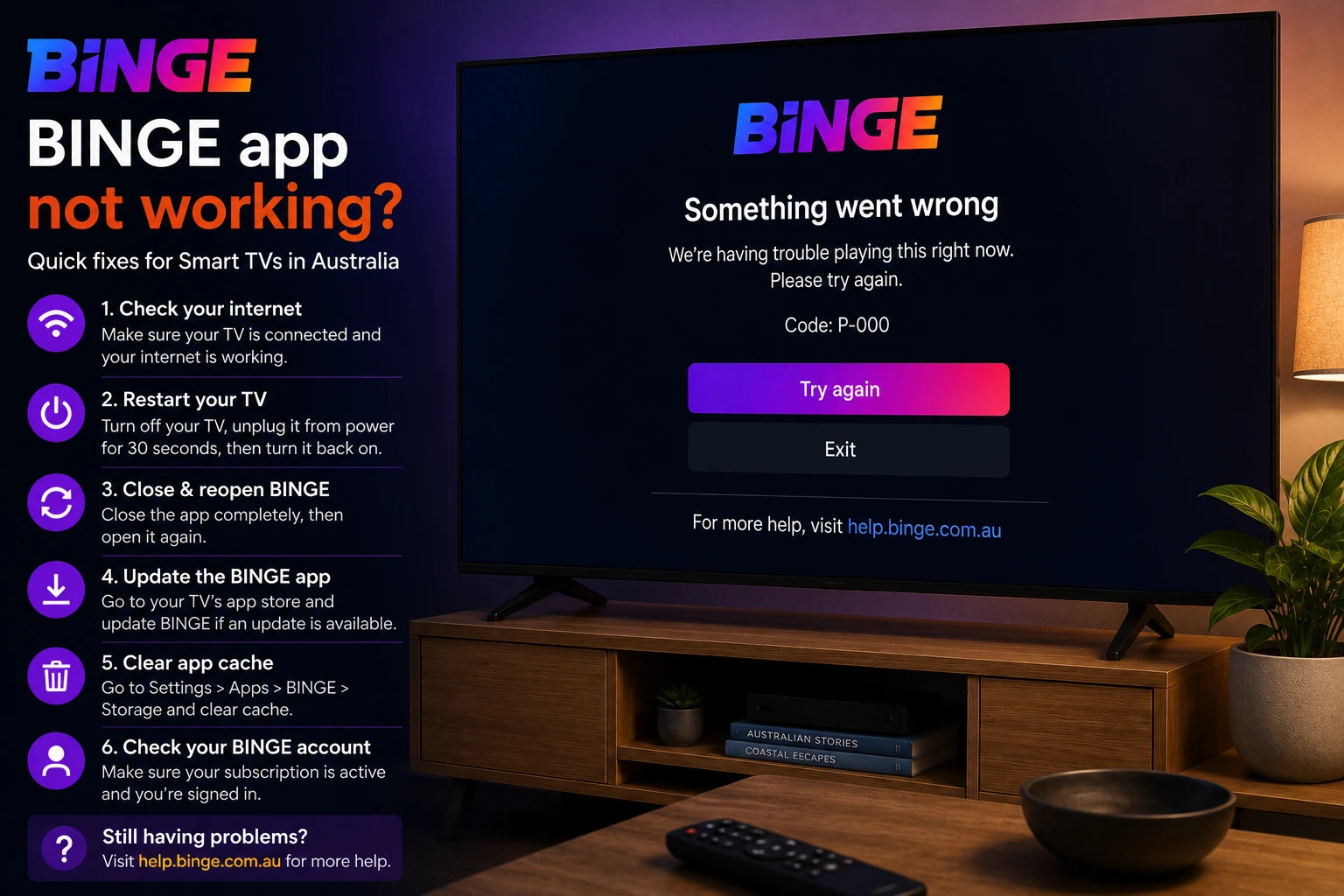
Why BINGE can fail on Australian Smart TVs
BINGE problems can look the same even when the causes are different. A spinning wheel might be Wi-Fi. A location error might be VPN. A frozen screen might be app cache. A missing app might be device compatibility. The right fix depends on narrowing the issue first.
Start by testing BINGE on a second device. If BINGE works on your phone but fails on the TV, focus on the TV app, firmware, device age and casting. If it fails on every device, check account status, location/VPN settings, service errors and internet connection.
Check BINGE device compatibility
BINGE publishes a supported-device and browser page. This matters because not every Smart TV or older streaming device can run the current app reliably. For Android TV, BINGE’s support page references devices running Android TV OS 8.0 or later from selected manufacturers, plus Chromecast options.
If your TV is old, a supported external device can be more stable than the built-in app. A newer Chromecast with Google TV, compatible Android TV device or supported browser can also make updates easier.
Fast BINGE troubleshooting checklist
- Force close BINGE and reopen it.
- Restart your Smart TV or streaming device.
- Update the BINGE app.
- Check that your device is supported.
- Disable VPN while testing.
- Restart your modem/router.
- Clear cache if the device allows it.
- Reinstall the app only after saving login details.
BINGE content will not load or keeps freezing
BINGE support recommends checking device compatibility, rebooting the device, deleting and reinstalling the app, checking internet connection, clearing cache and reducing the number of devices connected to the internet. These steps are practical because they target the app and the home network together.
For Australian homes on NBN, the number of connected devices matters. A TV stream can buffer if someone is gaming, downloading updates, backing up photos or using video calls at the same time. Before blaming BINGE, pause large downloads and test the same episode again.
BINGE error messages and VPN warnings
If BINGE shows a location or country error, check VPN first. BINGE’s error-message help says some errors can appear when the account is not available in the current location or when CDN geo-blocking is triggered. Turn off VPN on the TV, phone, router or browser, then reopen the app.
Also avoid “smart DNS” settings while troubleshooting. If the app works after disabling VPN or custom DNS, the app was likely blocking the network path rather than failing because of the TV.
BINGE Chromecast not working
For casting, BINGE recommends Chromecast Ultra models or later, including Chromecast with Google TV and Chromecast 3rd Generation. It also says Chromecast 1st Generation is not supported. That single detail can save time: if your Chromecast is too old, no amount of router restarts will make it reliable.
- Confirm Chromecast generation.
- Connect phone and Chromecast to the same Wi-Fi network.
- Update the BINGE mobile app.
- Restart Chromecast and phone.
- Test casting YouTube or another app to check the cast system.
- Try the native BINGE app on Chromecast with Google TV when available.
Smart TV black screen or app crash
If BINGE opens to a black screen, fully restart the TV from power. Many TVs stay in standby and keep broken app sessions alive. Unplug the TV for at least 30 seconds, restart the modem/router, then launch BINGE again. If the issue returns, check for TV firmware updates and app updates.
On Android TV or Fire TV style devices, clear app cache and check storage space. Apps can behave strangely when storage is almost full. Remove apps you no longer use and restart before retesting BINGE.
Compare with other Australian apps
If BINGE is the only app failing, focus on BINGE app support, login, cache and compatibility. If 7plus, 9Now, SBS On Demand and Kayo also buffer, the issue is probably your network or device. Use the NBN and Wi-Fi buffering guide to check router placement, 5 GHz Wi-Fi and Ethernet options.
Safe viewing note
Use official BINGE apps, supported devices and official help pages. Do not enter account details into unofficial “fix” sites or fake support pages. OzViewTV is independent and cannot access your BINGE account or billing.
Test Your Device Before You Commit
Message OzViewTV with your TV model, streaming device and the app that is failing. Check your setup first, then choose a plan only if it works well for you.
Official pages to check
For account, subscription, rights, device and app availability questions, always confirm details with the official service before making major changes to your TV, router or subscription.
- BINGE supported devices and browsers
- BINGE general troubleshooting
- BINGE Chromecast help
- BINGE error messages
Frequently asked questions
Why is BINGE not working on my TV?
Common causes include an unsupported device, outdated app, weak internet connection, cache issues, VPN/location problems or a temporary service error.
Why does BINGE say my account is not available in my location?
BINGE support links location errors to VPN or country/CDN restrictions. Disable VPN and confirm you are using the service from Australia.
Which Chromecast works best with BINGE?
BINGE recommends Chromecast Ultra or later, including Chromecast with Google TV and Chromecast 3rd Generation, and says Chromecast 1st Generation is not supported.
Should I clear cache or reinstall BINGE?
Yes, after checking compatibility, restarting the device and confirming your internet. BINGE support includes cache clearing and reinstalling in troubleshooting steps.
Is OzViewTV official BINGE support?
No. OzViewTV is independent. Use official BINGE support for account, billing and subscription questions.
Need Help Checking Your Australian Setup?
Send your device model, app name and the exact error on WhatsApp. OzViewTV can help you test the setup before you rely on it for live sport or family TV.